How to Edit MP3?
For editing audio files you can use the following commands:
Copy and paste a section
On the waveform select the region to be copied using the mouse. Click the "Copy" button on the toolbar or use the key combination Ctrl+C.
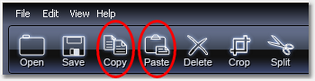
To paste the copied fragment, place the cursor on the required place on the graphic and click "Paste".
Removal of a section
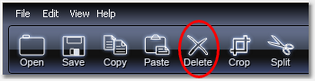
On the waveform select the region using the mouse. Click the "Delete" button on the toolbar.
Cutting a section
On the waveform select the region using the mouse. Click the "Cut" button on the toolbar or use the key combination Ctrl+X.
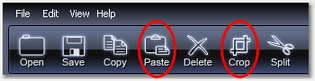
To paste the cutted fragment, place the cursor on the required place on the graphic and click "Paste".
Undoing an edit
To undo the previous action, click "Undo" in the "Edit" menu.
To repeat an action, click "Redo" in the "Edit" menu.
Volume fade effect
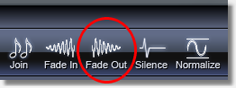
Select a region on the graphic with the mouse to which the fading effect will be applied. Click the "Fade Out" button on the toolbar.
Volume increase effect
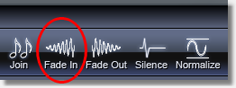
Select a region on the graphic with the mouse to which the fading effect will be applied. Click the "Fade In" button on the toolbar.
Volume normalization
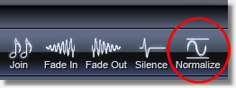
Normalization allows you to equalize the volume level between audio files or between sections of a single file. To normalize the entire file no selection is made - just click "Normalize" on the toolbar. To normalize parts of an audio file, select the required region of the graphic with the mouse and click "Normalize" on the toolbar.
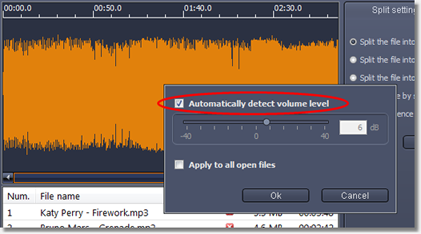
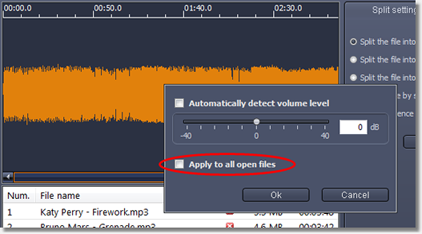
In the dialog that opens, you can select the automatic mode by checking the box opposite "Automatically detect volume level". In this case the application will automatically calculate the required volume level.
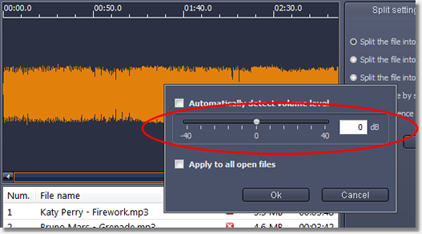
In manual mode, you have to specify a new volume level. All changes made in the dialog will be immediately reflected in the waveform.
To apply the settings to all open files, check the box opposite "Apply to all open files".
Inserting a silence
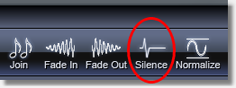
Place the mouse pointer in the desired place on the waveform and click the "Silence" button.
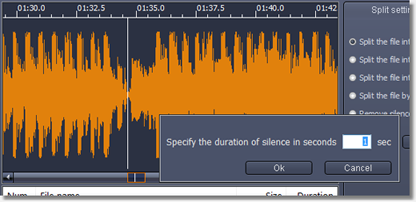
In the dialog that opens, specify the length of silence in seconds and click "Ok".
To save your changes, click the "Save" button on the toolbar.

|